
Import Qlik App Objects from other App
Import lets you reuse App objects (sheets, master items, and variables) and Data Load Script sections from another Application versioned in Soterre.
INFO
The Import tab imports Script sections and App objects context-wise. To import sheets, navigate to the Sheet view or App Overview in Qlik Sense. To import script sections, navigate to the Data Load Editor.
TIP
Make sure to have Soterre Helper turned on and that the source Application is versioned in Soterre.
Open the target app and go to the Import tab
Open the Qlik Sense app you want to import objects into, activate the extension, and proceed to the Import tab.
Choose the source Soterre Application you want to reuse objects from.
Import App objects
In the Import tab, select the sheets/master items/variables you want to import and press Import.
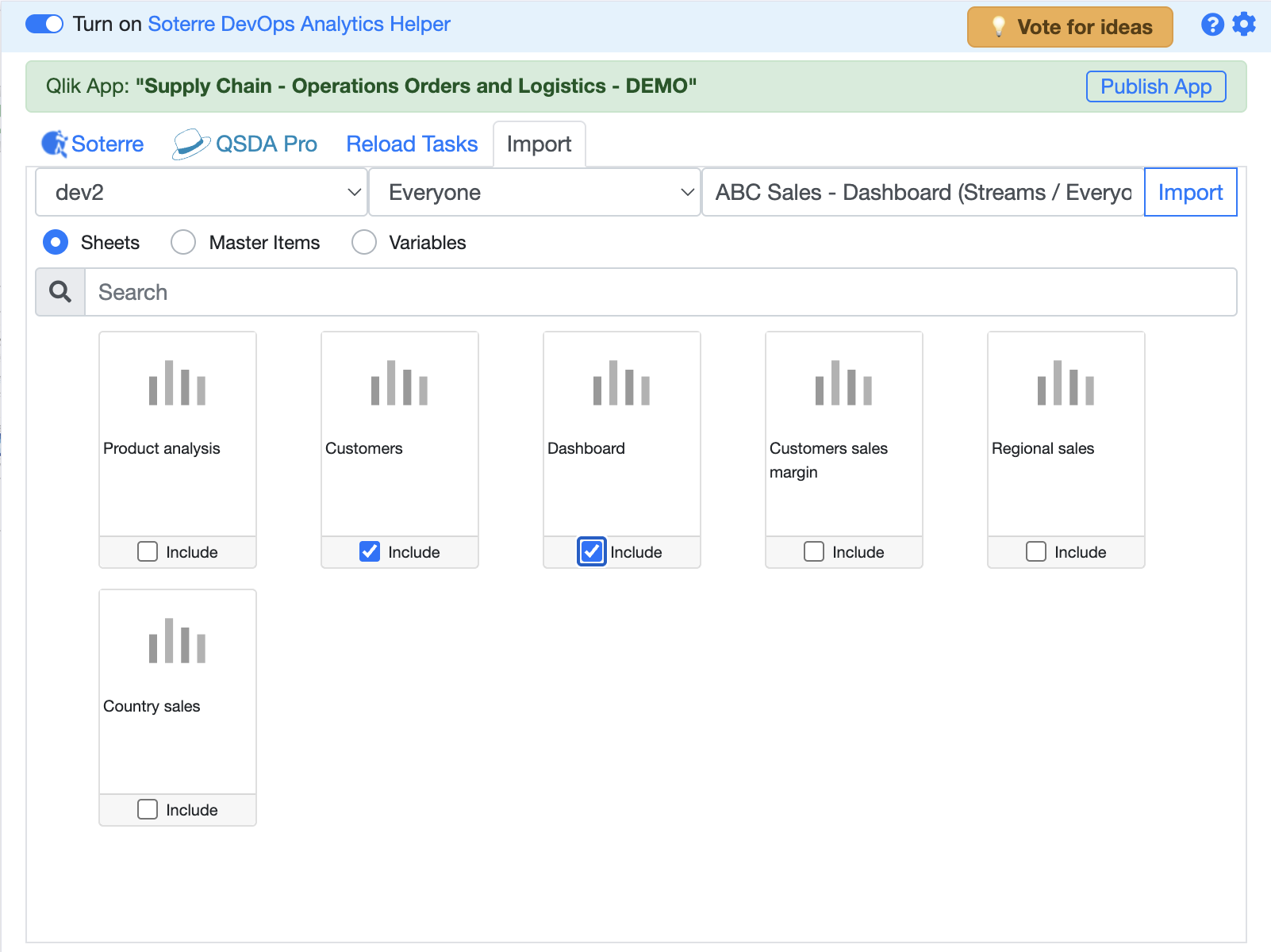
Select the App objects (sheets) to import
Import Data Load Script sections
Proceed to the Data Load Editor page and perform the same steps: select the script sections for import and press Import.
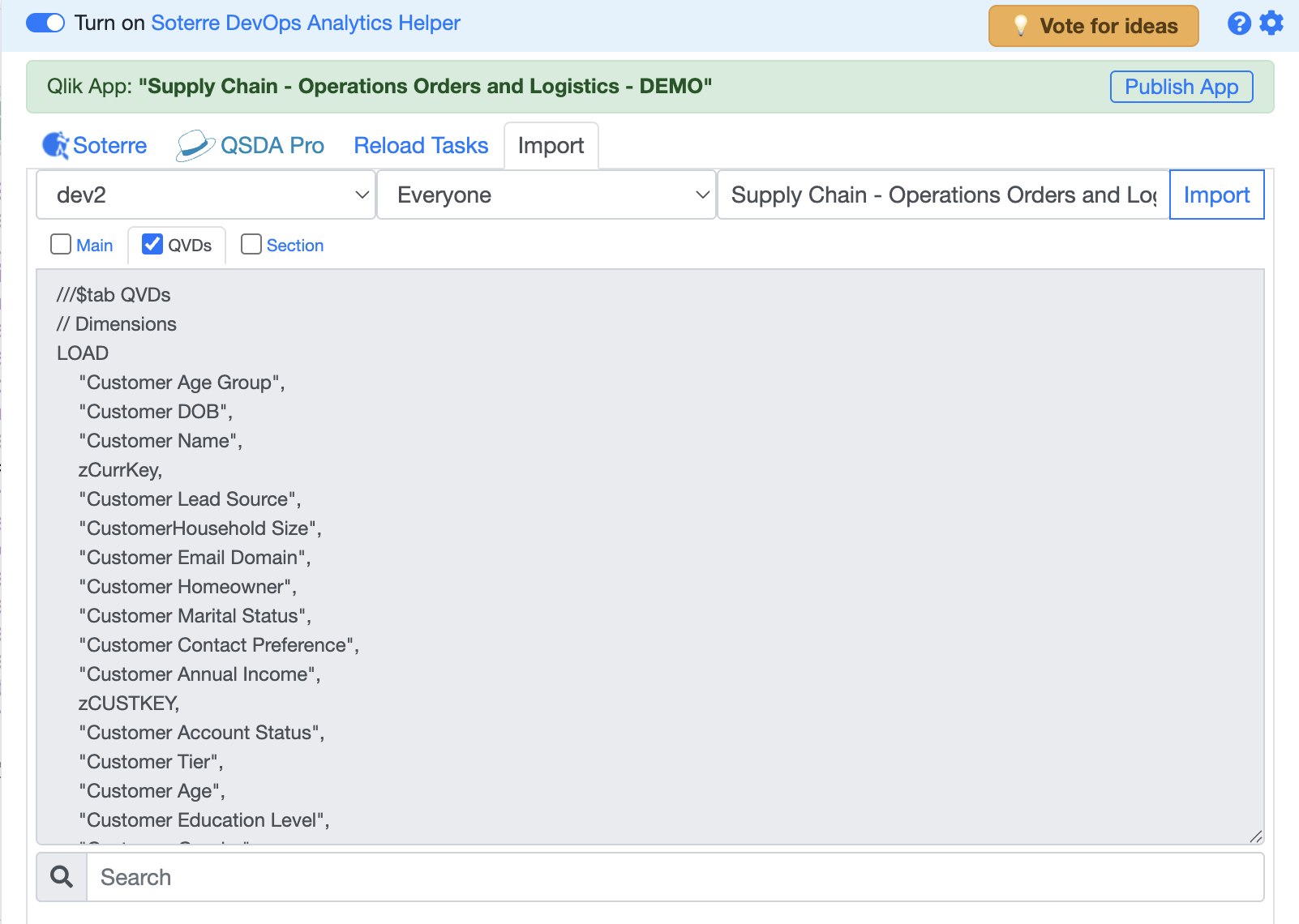
Select the Data Load Script sections to import
Resolve conflicts
A conflict window signals an identical existing section. To avoid duplicity, press "Overwrite from repo". Otherwise, you can keep both sections.
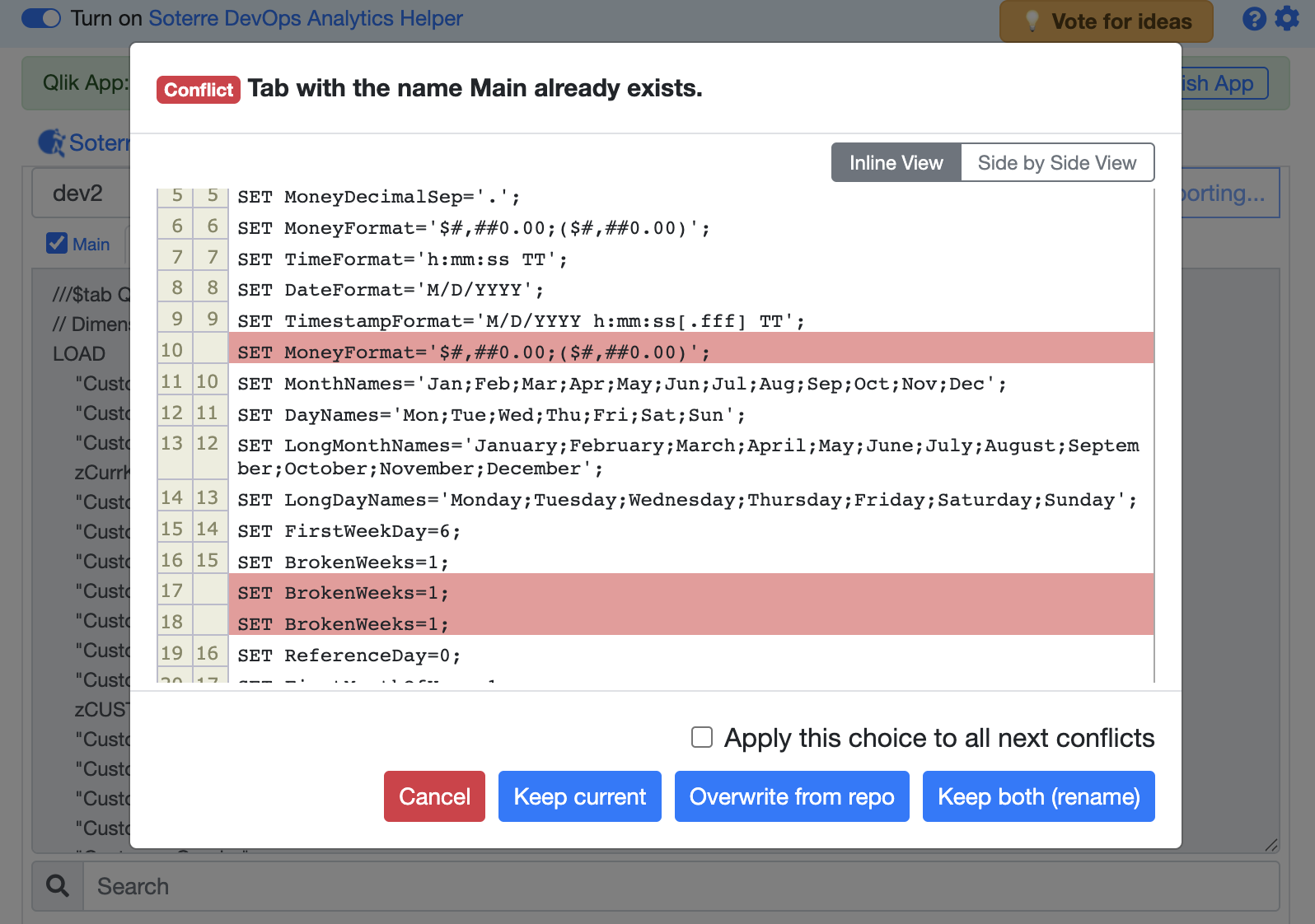
Conflict window: keep current, overwrite from repo, or keep both
The imported objects should now appear in your Qlik Sense application.